
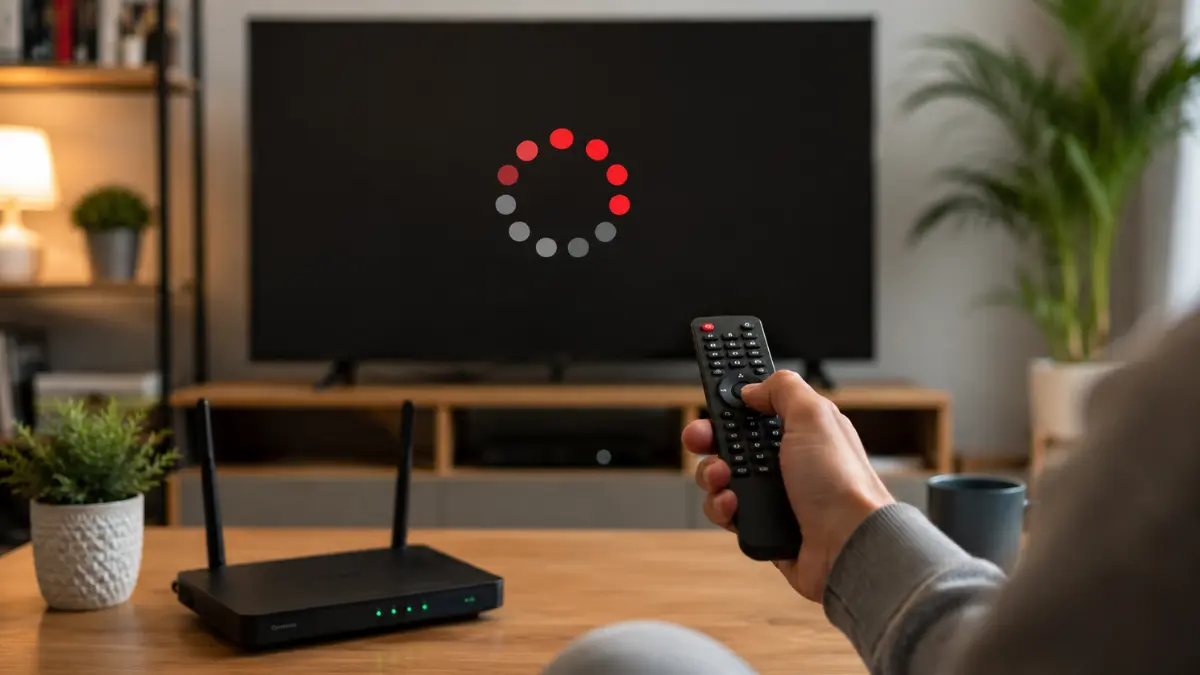

Netflix buffering usually happens when your device can not receive video data consistently enough to maintain playback. A slow connection can cause the problem but unstable Wi-Fi, network congestion, an outdated app, temporary device data or an unsuitable video-quality setting can also interrupt streaming.
Start by testing the connection on the affected device. Then restart the device and home network, improve the Wi-Fi signal, reduce other network activity and lower the Netflix playback quality when necessary. Netflix identifies a weak or unstable internet connection as the usual cause when a programme loads slowly or repeatedly buffers.
Follow the steps below in order. Test Netflix after each step so you can stop when the buffering disappears.
Check Whether the Problem Affects Only Netflix
Before changing router settings or reinstalling the app, identify the extent of the problem.
Try opening another streaming service or playing a high-quality video on the same device. Then open Netflix on another device connected to the same network.
The results can help narrow down the cause:
- If every service loads slowly, your internet connection or Wi-Fi network probably causes the problem.
- If Netflix buffers on every device but other services work normally, the connection between your network and Netflix may need attention.
- If Netflix buffers on only one device, focus on that device, its app, and its Wi-Fi connection.
- If only one film or episode has trouble, try another Netflix title before changing your network.
- If the Netflix menus also freeze, the problem may involve the app or device rather than normal video buffering.
Netflix treats buffering and a frozen app as separate problems. Its buffering guidance focuses mainly on connection quality, while its frozen-app guidance recommends refreshing the app or device data.
Also Read: 7 Safe Ways to Remove a Password from a PDF
Test Your Internet Speed on the Affected Device
Run the speed test on the same device and in the same location where Netflix buffers. Testing on a phone next to the router will not accurately represent the connection reaching a television in another room.
On a smart TV or TV-connected streaming device:
- Open Netflix.
- Return to the Netflix menu.
- Select your profile icon or scroll to the bottom of the side menu.
- Choose Get Help.
- Select Check Your Network.
On a phone, tablet, or computer, open a browser and run Netflix’s Fast.com speed test. The Netflix mobile app may also provide an internet speed test under My Netflix > Menu > App Settings > Internet Speed Test.
Netflix currently recommends a stable connection of at least:
| Video quality | Resolution | Recommended speed |
|---|---|---|
| HD | 720p | 3 Mbps or higher |
| Full HD | 1080p | 5 Mbps or higher |
| Ultra HD | 4K | 15 Mbps or higher |
These figures apply to the Netflix stream itself. Other phones, televisions, computers, cloud backups, video calls, downloads and security cameras may use the same connection at the same time. A household may therefore need more total bandwidth than the minimum speed shown for one Netflix stream. Netflix also emphasises that the connection must remain stable, not merely reach the recommended number for a brief moment.
Run the test more than once if buffering comes and goes. Large differences between results can reveal an unstable connection even when the highest result looks fast enough.
Restart the Device Completely
A complete restart clears temporary processes and forces the device to create a fresh connection. Closing Netflix or putting the device into standby may not provide the same result.
For a smart TV, Fire TV, Roku, Apple TV, Chromecast, game console, or other streaming device:
- Turn off the device.
- Unplug it from power.
- Make sure it does not remain in standby mode.
- Leave it disconnected for at least 15 seconds.
- Reconnect the power and open Netflix.
Netflix provides a longer power-reset method for some buffering problems. It recommends unplugging the device, pressing its power button once and waiting one minute or leaving it unplugged for three minutes when pressing the power button is not possible.
On a phone, tablet, or computer, shut the device down fully instead of simply locking the screen. Turn it back on and test the same Netflix title.
Restart the Modem and Router Correctly
Restarting the network can clear a temporary connection problem between the router, internet provider, device, and Netflix.
Use this order:
- Turn off the device that plays Netflix.
- Unplug the modem and router from power.
- Wait at least 30 seconds.
- Reconnect the modem first when the modem and router are separate.
- Wait until its normal connection lights become stable.
- Reconnect the router and allow it to start completely.
- Turn on the streaming device and test Netflix.
Do not press the small factory-reset button on the router. A normal restart only disconnects the power temporarily, while a factory reset can erase the Wi-Fi name, password, and internet settings.
Netflix recommends disconnecting the modem and router for 30 seconds, reconnecting them, waiting for the network to become available, and then trying Netflix again.
Improve the Wi-Fi Signal Reaching the Device
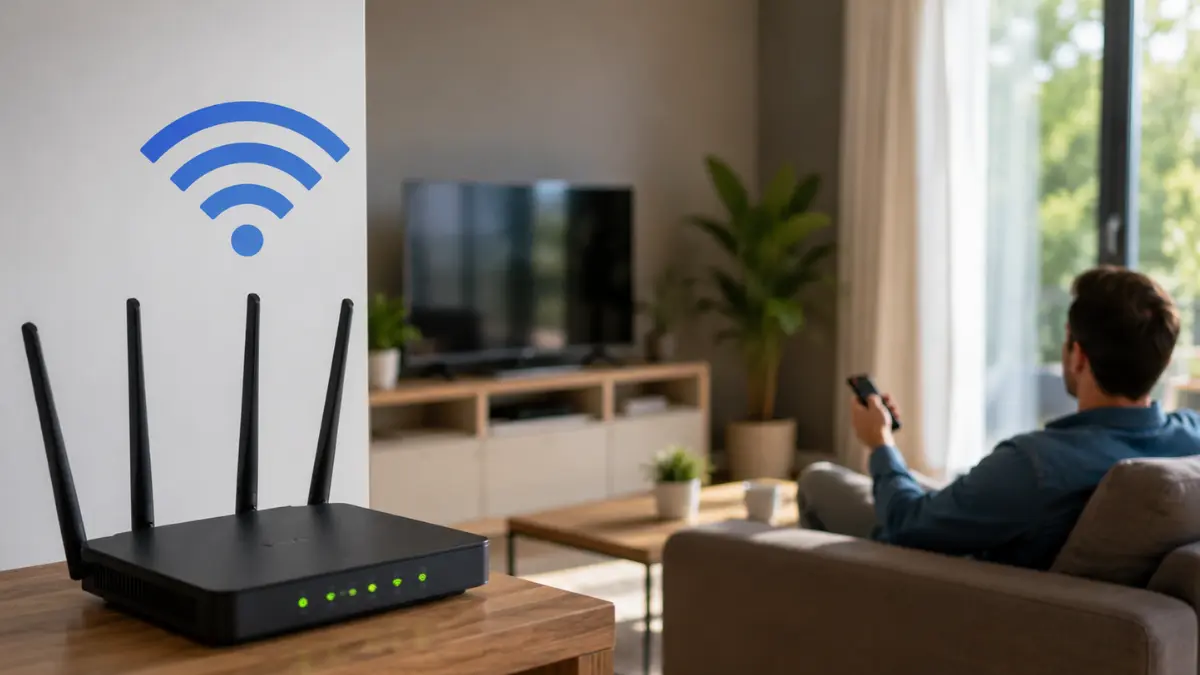
A fast broadband plan cannot prevent buffering when the Wi-Fi signal becomes weak before reaching the television or phone.
Move the router closer to the affected device when possible. Keep it in an open, elevated position rather than inside a cabinet, behind a television, on the floor, or beside large metal objects. Netflix specifically recommends placing the router in an open space off the floor and moving it away from other wireless devices and appliances.
Walls, floors, furniture, appliances, and distance can weaken the signal. A television placed far from the router may receive much less speed than a phone in the same home.
Try these practical changes:
- Move the router and streaming device into the same room for a test.
- Remove objects that block the router.
- Avoid placing the router directly behind the television.
- Reposition a streaming stick with an HDMI extension cable when the television blocks its wireless signal.
- Connect the television or streaming device with Ethernet when both devices support it.
- Use a properly positioned mesh unit for a large or multi-floor home.
A wired Ethernet connection usually provides more consistent performance than distant or crowded Wi-Fi. It will not fix a slow internet plan, but it can remove wireless instability from the connection.
Pause Downloads and Other Heavy Network Activity
Netflix may start buffering when several devices compete for the same connection.
Check whether someone else is:
- Downloading a large game or software update
- Uploading photos or videos to cloud storage
- Joining a video meeting
- Streaming in 4K on another television
- Running an online backup
- Updating a phone, computer, or game console
Pause the heavy activity and test Netflix again. Also close unused applications on the affected computer or phone. Some apps continue syncing or downloading in the background even when you are not actively using them.
If buffering usually appears during the evening, repeat the speed test at that time. A connection that performs well in the morning may become less stable when the household or local network becomes busy.
Also Read: El Niño and Sudden City Flooding in India
Lower the Netflix Playback Quality
Netflix can reduce video quality automatically when connection speed changes, but lowering the account’s playback setting may provide more stable streaming on a limited or inconsistent connection.
To change the setting:
- Open Netflix in a web browser and go to your account.
- Select Profiles.
- Choose the affected profile.
- Open Playback settings.
- Select a lower data-usage option.
- Save the change.
Netflix provides separate playback settings for each profile. Its Auto option adjusts quality according to the available connection, while the lower settings use less data. Netflix specifically recommends reducing video quality when an internet provider limits speed or when a lower setting helps prevent buffering.
Lowering the quality will make the image less sharp, especially on a large television. However, a stable HD or standard-definition stream may provide a better viewing experience than a 4K stream that stops repeatedly.
Update Netflix and the Device Software
An outdated Netflix app or operating system can cause playback problems, especially when the app can no longer communicate correctly with current Netflix services.
Open the device’s app store and check for a Netflix update. Then check the television, streaming device, phone, tablet, or computer settings for a system or firmware update.
Netflix recommends keeping devices on their latest available software or firmware. It also advises phone and tablet users to update the Netflix app to receive current video-quality improvements.
Restart the device after completing the updates, even when the update process does not request it.
Refresh the Netflix App on a Smart TV or Streaming Device
When buffering affects only one television or streaming device, sign out of Netflix and sign back in.
From the Netflix home screen:
- Press the back button to open the menu.
- Select your profile icon or scroll to Get Help.
- Choose Sign out.
- Confirm the action.
- Sign back in and test playback.
If the device shows an error screen, select More Details, followed by Sign out or Reset, when those options appear. Netflix includes signing out and back in among its basic troubleshooting steps for televisions and TV-connected devices.
You can also reinstall Netflix when the device permits it. Make sure you know your account details before removing the app.
Clear Netflix App Data on Android
Corrupted or outdated app data can affect Netflix on an Android phone or tablet.
To clear it:
- Press and hold the Netflix app icon.
- Select App info.
- Open Storage & cache.
- Tap Clear storage.
- Confirm the action.
- Open Netflix and sign in again.
The exact menu names vary between Android manufacturers. Clearing storage signs you out and removes downloaded Netflix programmes from the device. Netflix recommends reinstalling the app when clearing its data does not solve the problem. Reinstallation also removes saved downloads.
Do not clear the app data as the first step when you have several downloaded programmes that you want to keep. Test the connection and restart the device first.
Fix Netflix Buffering in a Web Browser
When Netflix buffers on a computer but works on other devices, test another supported browser. Also update the browser and operating system before changing advanced settings.
Close unnecessary tabs, downloads, video calls, and browser extensions that use significant memory or network bandwidth. Then restart the browser.
If Netflix continues to behave incorrectly, sign out and clear Netflix-related cookies or the browser’s cookies and site data. Clearing Netflix cookies signs you out, so keep your account password available. Netflix also maintains minimum supported browser versions, which can change as browsers and streaming requirements develop.
Avoid clearing every browser setting unless the more targeted steps fail. Start with Netflix cookies, restart the browser, and test again.
Check Public Wi-Fi, Hotspots and Mobile Connections
Hotel, school, office, café, and other public networks may restrict video streaming. Ask the network administrator whether the connection blocks Netflix or limits streaming bandwidth.
Mobile hotspots, cellular networks, and satellite connections can also fluctuate more than fixed home broadband. Netflix warns that these connection types may not provide enough consistent speed for streaming.
On a phone, compare Wi-Fi and mobile data:
- Test Netflix on Wi-Fi.
- Turn off Wi-Fi and test it on mobile data when your plan allows.
- Compare the results.
If Netflix works on mobile data but not Wi-Fi, focus on the router or internet provider. If it works on Wi-Fi but not mobile data, check the phone’s cellular-data permissions, signal strength, and data-saving settings.
Contact the Internet Provider When Every Device Buffers
Contact your internet service provider when Netflix and other services remain slow across several devices after you restart the network and improve the Wi-Fi signal.
Give the provider useful details:
- The speed-test results
- The times when buffering occurs
- Whether all devices experience it
- Whether Ethernet works better than Wi-Fi
- Whether other streaming services also slow down
- Whether the problem started after a router or plan change
Netflix recommends asking the provider to check for a local outage, modem or router problems, incorrect network settings, and issues affecting the connection. It also recommends running Fast.com before ending the support conversation to confirm whether performance has improved.
Contact Netflix support instead when the internet works normally, other streaming services play correctly, and Netflix continues to fail on several compatible devices. Record any error code before contacting support because it can identify a more specific problem.
Frequently Asked Questions
Why does Netflix buffer even when my internet is fast?
A speed test may show a high maximum speed while missing brief connection drops, Wi-Fi interference, congestion, or packet loss. Netflix needs a stable connection throughout playback, not only a fast result during a short test.
What internet speed does Netflix need?
Netflix generally recommends at least 3 Mbps for 720p HD, 5 Mbps for 1080p Full HD, and 15 Mbps for 4K Ultra HD. Your household may need more total speed when several devices use the connection simultaneously.
Why does Netflix buffer only on my smart TV?
The television may receive a weaker Wi-Fi signal than other devices. Its Netflix app, firmware, network settings, or internal hardware may also need attention. Test the connection directly through the Netflix app on the television.
Why does Netflix buffer more at night?
More people may use your household or local internet connection during the evening. Streaming, gaming, video calls, cloud backups, and downloads can compete for bandwidth and reduce the connection available to Netflix.

1 thought on “How to Fix Slow Netflix Streaming on Any Device”