
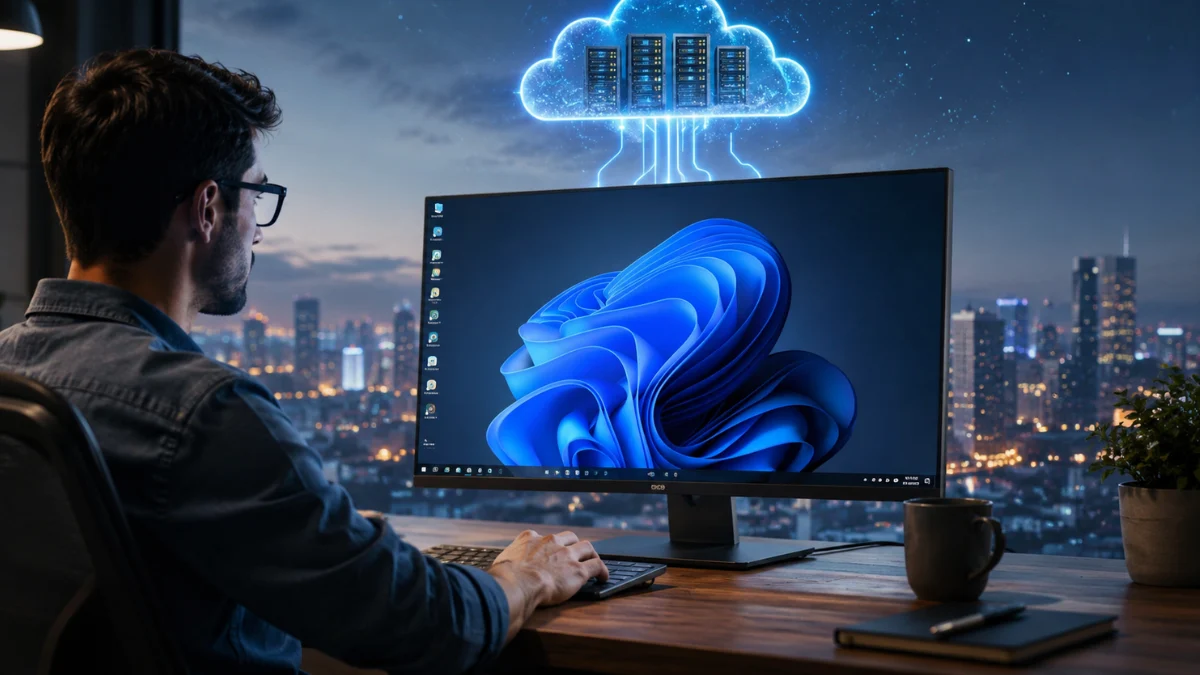

A hosted virtual desktop is a computer workspace that runs on a remote server instead of running entirely on the laptop, tablet, or desktop computer in front of the user. The local device displays the workspace and sends keyboard, mouse, audio and other commands to the remote system through a network connection.
The term “virtual desktop” can also refer to the multiple desktop workspaces built into Windows. Those local workspaces simply organise open applications on the same computer. This article focuses on hosted or cloud virtual desktops, including systems commonly described as Virtual Desktop Infrastructure, or VDI.
What Is a Virtual Desktop?
A virtual desktop gives a user access to an operating system, applications, files and personal settings without requiring all of them to run directly on the local device.
It can look and behave like a normal Windows computer. The user can open documents, run business applications, browse files, attend meetings and complete everyday tasks.
However, the main computing environment may exist inside a data centre or cloud platform.
The user usually opens the desktop through a dedicated application or supported web browser. After signing in, the remote desktop appears on the screen almost as if it were running locally.
Companies often use Virtual Desktop Infrastructure to create, manage and deliver these environments. Some businesses build the system on their own servers, while others use a managed cloud service known as Desktop as a Service.
Where Does a Virtual Desktop Actually Run?
A hosted virtual desktop usually runs on a physical server inside a data centre.
A server is a powerful computer designed to support many users, applications or workloads. Virtualisation software divides its resources so that different users can receive separate desktop environments.
The server may provide:
- Processing power
- Memory
- Virtual storage
- An operating system
- Installed applications
- Network access
- Security controls
- User profiles and permissions
Not every user necessarily receives a completely separate virtual machine.
Some systems assign one dedicated virtual machine to each user. Others allow several users to operate separate sessions on the same server operating system. A company may also use a pool of virtual desktops and assign an available one whenever someone signs in.
The exact arrangement depends on the provider, company policy, application requirements and number of users.
In every model, the user sees a personal desktop experience even though the underlying hardware may serve many people.
How Does a Virtual Desktop Reach Your Screen?
The virtual desktop system sends visual information from the remote server to the local device.
When a user moves the mouse, types a word, opens a file, or clicks a button, the local device sends that input to the server. The server processes the action and returns an updated image of the desktop.
Consider a spreadsheet opened inside a virtual desktop.
The spreadsheet application may run on a server hundreds of kilometres away. When the user changes a number, the server recalculates the spreadsheet and sends the updated view back to the screen.
This exchange happens repeatedly and rapidly. With a stable, low-latency connection, the desktop can feel similar to a program running directly on the device.
The system does not normally send the entire screen as a completely new image after every small action. Remote-display technology detects changes, compresses information, and tries to deliver only what the user needs to see and hear.
What Does the Local Computer Do?
The local computer does not become useless when a virtual desktop performs most of the main work.
It still runs its own operating system and manages the connection to the remote environment. It must also display the incoming desktop, process keyboard and mouse input, play audio, and handle permitted local devices.
The local device may be responsible for:
- Running the virtual desktop application or browser
- Maintaining the network connection
- Displaying images and text
- Playing remote audio
- Capturing microphone or camera input
- Managing a keyboard, mouse, printer, or USB device
- Protecting the local operating system
This arrangement allows a relatively modest computer to access software that would normally require more processing power, memory, or storage.
However, a very old or underpowered device can still reduce performance. It may struggle with high-resolution displays, video calls, multiple monitors, fast animation, or graphics-heavy applications.
Does a Virtual Desktop Use Your RAM and Processor?
A virtual desktop uses resources on both the remote server and the local device.
Applications opened inside the hosted desktop normally use the memory and processing power allocated by the remote infrastructure. The remote server handles tasks such as opening large documents, calculating spreadsheets, running business software, and managing the hosted operating system.
The local computer still uses some of its own RAM and processor capacity.
It needs those resources to run its local operating system, virtual desktop client, display functions, network processes, security tools, and connected devices.
For example, a business application may need 8 GB of memory inside the hosted desktop. The local laptop does not necessarily need to provide that complete amount because the application uses the remote environment’s allocated memory.
The local device still needs enough power to display the session smoothly.
Video editing, 3D modelling, gaming, engineering software, and real-time visual applications may require specialised servers, graphics processors, and capable local hardware. A virtual desktop does not automatically make every demanding application work well on every device.
Where Are Virtual Desktop Files Saved?
Files created inside a hosted virtual desktop commonly remain on remote storage.
They may be saved in:
- A virtual hard drive
- A company file server
- A cloud storage account
- A shared network folder
- A user profile
- An application database
The exact storage location depends on how the organisation configures the service.
A user may sign in from an office computer and later access the same account, applications, settings, and files from another approved device. The service can provide a consistent desktop experience because the important information remains connected to the remote account.
This does not always mean the user receives the same virtual machine at every sign-in.
Persistent systems may preserve one personal virtual desktop for a specific user. Pooled or non-persistent systems may provide a different desktop instance while restoring the user’s files, profile, settings, or approved applications.
Some virtual desktop systems allow users to download files to their local devices. Others block downloads, printing, clipboard transfers, screenshots, USB storage, or file copying.
A company must configure these controls correctly. Using a virtual desktop does not automatically prevent sensitive information from reaching a local device.
Does a Virtual Desktop Need the Internet?
A cloud-hosted virtual desktop normally requires an active internet connection.
The local device must communicate continuously with the remote server. Without that connection, it cannot receive the desktop display or send the user’s actions.
A company may host virtual desktops on its own servers and allow employees to access them through an internal office network. Remote workers may connect through the internet, a secure gateway, or a virtual private network.
The quality of the connection affects how responsive the desktop feels.
Download speed matters, but latency can be equally important. Latency measures the delay between sending an action and receiving the result.
A connection may have high download speed but still feel slow if the server sits far away or the network introduces frequent delays.
Ordinary documents, email, and simple business applications usually require less bandwidth than high-resolution video, multiple monitors, 3D graphics, or live communication.
A weak or unstable connection may cause:
- Delayed typing
- Slow mouse response
- Blurry screen updates
- Broken audio
- Frozen sessions
- Sudden disconnections
The remote computer may continue running after a temporary disconnection, but the user cannot control or view it until the connection returns.
Is a Virtual Desktop the Same as Remote Desktop?
Virtual desktops and Remote Desktop are closely related, but the terms describe different parts of remote computing.
A virtual desktop describes the desktop environment that the user receives and the infrastructure that hosts it.
Remote Desktop often describes the technology used to connect to and control a computer or desktop session from another device.
For example, a person may use Remote Desktop to connect directly to a physical office computer. The same type of remote-access technology can also deliver a virtual desktop running inside a data centre.
Therefore, Remote Desktop does not always mean a physical computer and a virtual desktop may use Remote Desktop technology for access.
The simplest distinction is:
- Virtual desktop: the hosted computer environment
- Remote Desktop: a method or technology used to access a remote environment
The terms can overlap because companies and software providers sometimes use them differently.
Is a Virtual Desktop the Same as a Virtual Machine?
A virtual machine is a software-based computer created inside a physical computer.
It can have virtual processing power, memory, storage, networking, and its own operating system.
A hosted virtual desktop may run inside a virtual machine, but the two terms do not have the same meaning.
The virtual machine provides the simulated computer. The virtual desktop provides the user-facing workspace delivered through a network.
Virtual Desktop Infrastructure also includes systems for user authentication, connection management, application delivery, profile storage, security rules, monitoring, and resource allocation.
Companies can use virtual machines for many tasks that have nothing to do with employee desktops. They may run websites, databases, test environments, or business servers inside virtual machines.
Is It the Same as Windows Multiple Desktops?
Windows multiple desktops are not the same as hosted virtual desktops.
The Windows feature allows a user to organise open applications into separate local workspaces. One desktop may contain work applications, while another contains personal or entertainment programs.
These workspaces still run on the same physical computer. They use the same local processor, memory, storage, and operating system.
A hosted virtual desktop runs on remote infrastructure and reaches the user through a network connection.
The shared name creates confusion, but the two features solve different problems.
Windows multiple desktops organise applications on one computer. Hosted virtual desktops deliver a remote computer environment to one or more devices.
Why Do Companies Use Virtual Desktops?
Businesses use virtual desktops to manage applications, data, and user access from a central location.
An IT team can maintain approved software and security settings without configuring every device separately. Employees may also access the same work environment from different approved locations.
Common uses include:
- Supporting remote and hybrid workers
- Giving students access to specialised software
- Providing temporary access to contractors
- Running older business applications
- Reducing data stored on personal devices
- Supporting low-powered computers
- Managing software updates centrally
- Removing access when an employee leaves
A company may provide a temporary worker with a controlled desktop containing only the applications and files needed for one project.
A school may use virtual desktops to let students run laboratory or design software that their personal laptops cannot support.
Are Virtual Desktops Secure?
Virtual desktops can support strong security, but the technology does not guarantee safety by itself.
Centralised storage can reduce the amount of sensitive data kept on laptops that may become lost, stolen, or damaged. Administrators can also control who signs in, which applications users access and whether they can download, print, copy or transfer information.
However, virtual desktops can still face:
- Stolen passwords
- Malware
- Incorrect permissions
- Unpatched software
- Insecure personal devices
- Poorly configured access rules
- Compromised user accounts
A secure setup requires multi-factor authentication, software updates, encryption, careful permissions, backups, monitoring and responsible user behaviour.
What Are the Main Limitations?
The largest limitation is dependence on the network and remote infrastructure.
When the connection fails, the user may lose access even though the device itself still works. A provider outage, overloaded server, or incorrect configuration can also interrupt work.
Other limitations include:
- Input delay
- Reduced image quality
- Limited personalisation
- Restrictions on local devices
- Subscription or infrastructure costs
- Dependence on an IT team or provider
- Poor performance for graphics-heavy tasks
A virtual desktop works best when the organisation provides enough server resources, chooses a nearby data centre, maintains a reliable network, and configures the service for the applications people actually use.
A hosted virtual desktop is best understood as a computer workspace running somewhere else. The server performs most of the central computing, while the device in front of the user acts as the screen, connection point and control system.
FAQs and Answers
Does a virtual desktop run on my computer?
The complete hosted desktop does not normally run on the local computer. The local device displays the remote desktop, sends keyboard and mouse commands, plays audio, and maintains the network connection.
Does a virtual desktop use my computer’s RAM?
Yes, but only part of it. The local device uses RAM for its operating system, browser or desktop client, display, audio, and network connection. Applications inside the virtual desktop mainly use memory allocated by the remote server.
Does a virtual desktop require internet access?
A cloud-hosted virtual desktop normally requires an active internet connection. A company-hosted desktop may also work through an internal network, secure gateway, or virtual private network.

1 thought on “What Is a Virtual Desktop and How Does It Work?”